
Google Tag Manager (GTM) is a free tag management system (TMS) that allows you to manage, update, and deploy website tags-such as Google Analytics, marketing pixels, and conversion scripts-without editing your site’s code. It works by using one small code snippet to manage all third-party tracking, speeding up deployment and reducing errors.
What is Google Tag Manager?
Google Tag Manager (GTM) is a free tool that enables you to install, store, and manage marketing tags without modifying website code.
Marketing tags are small snippets of code that track user actions and collect data.
The most common example of a marketing tag is the Google tag.
The Google tag is used to install Google Analytics and other Google products and services.
Why is Google Tag Manager used?
Google Tag Manager (GTM) is a free tool that simplifies adding and managing marketing/analytics tracking codes (tags) on websites or apps without editing website code directly. It reduces developer dependency, speeds up deployment, improves data accuracy with testing tools, and consolidates all tags into a interface.
Key reasons to use Google Tag Manager:
- No Coding Required for Marketers: Once GTM is installed, marketers can add, edit, and update tags (like Google Analytics, Facebook Pixel, Google Ads) without needing developers to update the code, enhancing agility and speed.
- Centralized Tag Management: All tracking codes are managed in one central interface rather than being scattered across multiple website files.
- Faster Website Performance: Tags in GTM fire asynchronously, meaning they don’t block other page elements from loading, which can improve site speed.
- Free to use: Google replaces manually coded tags, making site maintenance easier and significantly reducing the time spent on data collection setup.
How does Google Tag Manager Work?
For beginners, there are three concepts to understand: tags, triggers, and variables.
A Tag is a piece of code that must be fired on a website under certain circumstances. It can be a tracking code, some piece of code that changes the text or a particular website element, or even code that changes the color of the browser’s address bar, you name it. When you create a tag, you basically instruct Tag Manager to ”do this” ”do that”, ”track page views of the visitor”, ”track this click and send to Google Analytics”, tec.
A Trigger is a condition when a tag must fire. Should a tag fire on all page views? Or maybe on certain clicks? How about successful form submissions? All of these examples are triggers. When a particular condition (or a set of conditions) is met, a trigger is activated, and all the tags (linked to it) are dispatched.
A Variable is the final member of this trinity. Variables are little helpers that can be used in tags, triggers, or even in other variables. A variable can:
- hold a single piece of data (like page URL, website domain, product ID, text of a link, etc.)
- hold a set of data/settings (GA settings variable (for Universal Analytics) contains multiple settings related to GA, like tracking ID, Display Advertising settings, etc.)
- be a complex function (but this one is too advanced for beginners. Therefore, let’s skip it, at least for now), etc.
- Google Ads Conversion Tag is a tag. with it, you instruct the Google Tag Manager to do what? Track a conversion.
- When must this tag be fired? The information to send more precise data to Google Ads and to make our trigger actually work.
Create a Google Tag Manager Account
To get started, first, let’s create a GTM account.
Go to Google Tag Mangers’s official website and click the main call-to-action to create a new GTM account.
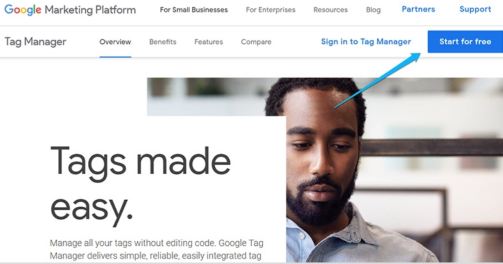
Like any other Google product, you will use the same Google account for Tag Manager. So if you’re already on Gmail (Google Ads, Google Analytics, etc.), you will be automatically logged in to Google Tag Manager. If not, create a Google account first) I will not show that procedure, so you’re on your own here).
Once you log in, you’ll be asked to create a new GTM account and a new container.
In the Account Name field, enter the name of the business (e.g., your client’s business). If you are an agency, it is a better practice to ask your client to create a GTM account and then share the access with you.
In the Container Setup section, enter the name of your website (it can be a domain (e.g., example.com) or just a name (e.g., My website). In this blog post, we will cover web tracking, thus choosing the web as the target platform.
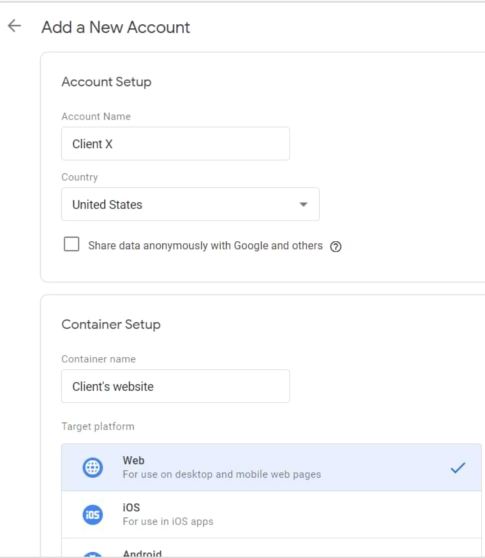
The Google Tag Manager account works the same as the GA account. usually, it’s for a company/business/client, while a container is usually for a website or application. A single container can contain many tags, triggers, and variables.
However, if several websites belong to a single business and their structure is very similar (plus, their tracking implementation is similar), feel free to use one container on multiple websites.
How to install Google Tag Manager?
To install Google Tag Manager (GTM), you must first create an account and then add the provided code snippets to your website’s source code.
- Create an Account and Container
- Install the Code Snippets
- Verify the Installation
- Publish Your Container
Google Tag Manager vs Google Analytics
Google Tag Manager (GTM) and Google Analytics (GA) are complementary, not competing, free tools. GTM is a delivery tracking codes (tags) without modifying site code, receives, stores, and analyzes data to generate reports. GTM improves efficiency, whereas GA provides user insights.
When to Use Which
- Use Google Tag Manager (GTM) to: Manage multiple tracking tags (GA4, Facebook Pixel, Google Ads) in one place without constant developer help.
- Use Google Analytics (GA4) to: Understand website traffic, conversion rates, user behavior, and to create audience segments.
How They Work Together
GTM does not replace GA. Instead, you install GTM on your website, and then use GTM to deploy the GA4 tracking code. This allows you to set up complex tracking (like button clicks, form submissions, or scroll tracking) easily through the GTM interface.
Advanced Features of Google Tag Manager
Google Tag Manager (GTM) has always been more than just a container for tags, it’s the backbone of modern digital marketing measurement.
In 2026, GTM continues to evolve rapidly to meet the demands of AI-driven marketing, stricter privacy regulations, and cross-channel user journeys.
Here’s what’s new in Google Tag Manager this year in 2026:
- AI-Powered Tag Recommendations: Instead of manually guessing which tags you need, GTM now uses AI to recommend the right tags and configurations. These suggestions are powered by industry benchmarks, your historical data, and predictive modeling.
- Example: An eCommerce brand may automatically be suggested ”Enhanced Ecommerce tracking” or ”Facebook Conversions API setup.”
- Why it matters: This drastically reduces setup time and helps even non-technical marketers deploy enterprise-grade tracking.
2. Seamless GA4 Integration with Auto-Schema Updates
Google Analytics 4 (GA4) and GTM are now more tightly connected than ever. GTM automatically syncs with GA4’s event schema updates, meaning when GA4 introduces new recommended events (like ”AI_content_engagement” or ”app_subscription_renewal”), GTM immediately makes them available.
- Benefit: Future-proof event tracking with no developer dependency
3. Consent Mode v2.5 (Regional Privacy Customization)
Privacy laws have become more complex in 2026, with region-specific consent requirements across the US, EU, APAC and LATAM.
GTM’s Consent Mode v2.5 lets businesses:
- Customize consent prompts by geography.
- Dynamically adjust data collection depending on local laws (GDPR, CPRA, LGPD, PDPA).
- Provide full transparency to users while still collecting modeled data for measurement.
- Key Impact: Stranger compliance + more reliable attribution even with cookie restrictions.
4. Server-Side GTM 2.0 (Speed, Security & AI Signals)
Server-Side GTM isn’t just a ”nice to have” anymore it’s the default standard for enterprise-grade tracking in 2026.
- Server-Side GTM 2.0 improves speed by reducing heavy client-side scripts.
- Supports direct integrations with ad platform (Meta, TikTok, LinkedIn, Dv360) via APIs.
- Enhances first-party data strategy by securely collecting user signals.
- AI Advantage: Cleaner server-side data means more accurate AI-driven insights and LLM-based personalization.
5. Cross-Device & Cross Platform Tracking Enhancements
In 2026, customer journeys rarely stay on a single platform. GTM now offers enhanced identity resolution, allowing marketers to:
- Connect web, mobile app, offline data with higher accuracy.
- Unify touchpoints across ads, CRM, and analytics platforms.
- Measure true ROI of omnichannel campaigns.
- Example: A user who clicks an Instagram ad, browses on mobile, and later purchases on desktop can now be stitched together into one journey in GA4 via GTM.
6. GTM Marketplace Expansion (pre-Built Tag Templates)
The GTM Template Gallery has exploded in 2026, offering hundreds of pre-configured third-party tag templates.
- Platforms like HubSpot, Salesforce, Shopify, Segment, and CDPs now offer one-click GTM templates.
- This drastically cuts down integration time for marketing stacks.
Common Beginner Mistakes
Here are some common mistakes beginners make when using Google Tag Manager (GTM):
- Viewing the wrong GTM Container: Make sure you’re working with the correct container, as mistakes can happen when managing multiple accounts.
- Not Publishing changes: GTM changes aren’t live until you click ”Submit” and publish them.
- Using data layer variables before they’re available: Ensure data is pushed to the data layer before trying to access it.
- Not using Preview and Debug mode: Test you tags, triggers, and variables thoroughly before publishing.
- Types and incorrect configurations: Double-check trigger conditions, tag types, and measurement IDs.
- Not setting up proper triggers: Triggers tell GTM when to fire a tag, so configure them correctly.
- Not monitoring page performance: GTM can impact page load times, so keep an eye on performance.
- Poor naming conventions: Use clear, descriptive names for tags, triggers, and variables.
- Not leveraging GTM variables: Variables make your tracking more accurate and personalized.
- Ignoring version control: Use GTM’s version history to track changes and revert if needed.
How much take time to learn Google Tag Manager (GTM)
Learning Google Tag Manager (GTM) basics takes a few hours, while becoming proficient typically requires weeks to months of hands-on practice. Beginner courses last roughly 1.5 to 9 hours, but mastery involves understanding JavaScript, data layers, and complex debugging, often taking 1-2 years.
Estimated Learning Times
- Basics & Setup: 1-3 hours to understand containers, tags, triggers, and variables.
- Fundamental Proficiency: 1-2 weeks of study and practice for tracking events, Google Analytics 4 (GA4), and button clicks.
- Advanced Mastery: Several months to years to master server-side tagging, custom JavaScript, and advanced data layer implementations.
Career Scope & Salary
A career in Google Tag Manager (GTM) offers high demand and strong earning potential, with average salaries around Rs.20 lakhs annually in India, scaling up to Rs.43+ lakhs for senior roles. It is a critical skill for digital analysts and performance marketers, with abundant job opportunities across tech, E-commerce, and agencies. Entry-level positions (0-2 years) start around Rs.4-8 lakhs, while 5+ years of experience can command over Rs.16-25 lakhs.
GTM proficiency is essential for roles that bridge technical implementation with digital marketing. Common job titles include:
- Digital Analytics Specialist/Manager: Owns the tracking architecture, data integrity, and implementation of tracking pixels for websites and apps.
- Performance Marketing Analyst: Uses GTM to track campaign conversions (ROI/ROAS) and user behavior, often seen in jobs on Cutshort and Glassdoor.
- Technical Marketing Manager: Focuses on server-side tracking, API integrations, and sophisticated tracking solutions.
- Freelance Analytics Consultant: provides services like data layer implementation, server-side migration, and conversion tracking audits.
Salary Overview (India 2026)
- Average Salary: Approximately Rs.20 lakhs per year.
- Junior (0-2 years): Rs.4L-Rs.8L per year.
- Mid-Level (2-5 years): Rs.10L-Rs.16L per year.
- Senior Level (5-8 years): Rs.16L-Rs.25L per year.
- Lead Analyst/Manager (8+ years): Rs.25L-Rs40L+ per year.
Best Resources to learn GTM (Free + Paid)
Top Resources for learning Google Tag Manager (GTM) include free courses from Analytics Mania and Measure School, alongside paid options from Udemy and Coursera. These platforms offer comprehensive training covering everything from beginner-level tags to advanced tracking, conversion tracking, and data layer implementation.
Free Resources
- Analytics Mania: Offers a comprehensive ”Google Tag Manager Courses for Beginners” and various free e-books and guides covering GTM fundamentals.
- Measure School: Known for practical, beginner-friendly YouTube tutorials and walkthroughs.
- Google Skill shop & Analytics Academy: Official, free, self-paced courses and documentation from Google for learning the fundamentals.
- Simmer (by Simo Ahava): Essential for advanced users, offering in-depth articles, though many advanced topics are paid, the blog is an incredible free resource.
Paid Resources
- Analytics Mania: Provides a ”Google Tag Manager Masterclass for Beginners” which includes a sandbox for practical tasks, quizzes, and personal feedback.
- Udemy: Hosts various affordable courses, including ”Google Tag Manager (GTM) From zero to Hero” and specialized courses for beginners.
- Coursera-Google Tag Manager: Advanced Tracking & Analytics: Offers structured, intermediate-level learning with multiple modules.
- Stape Academy: Offers courses focused on advanced setup and server-side tracking.
Conclusion
In 2026, Google Tag Manager is no longer optional, It’s essential for any business serious about data-driven growth. With new features in AI, server-side tagging, and consent management, GTM is the backbone of scalable, privacy-first, performance-driven marketing.
The conclusion of a Google Tag Manager (GTM) blog post typically highlights its role as a bridge between marketing needs and technical execution. Key themes often emphasize that GTM is no longer just an optional ”convenience tool” but a core part of modern data infrastructure.
Bloggers frequently conclude that while GTM has a steeper learning curve, the investment pays off through faster decision-making, cleaner data pipelines, and a higher ROI on marketing efforts.
FAQ Section
Can Google Tag Manager is free?
Yes, Google Tag Manager (GTM) is completely free for most users, allowing you to manage and deploy marketing tags (like Google Analytics, Google Ads, and custom HTML) without editing site code. It is a powerful, user-friendly, free tool that provides robust features to enhance site tracking.
Can beginners use Google Tag Manager?
Yes, beginners can use Google Tag Manager (GTM), as it is designed to manage website tracking codes without needing to constantly edit website code, reducing dependency on developers. While there is a learning curve regarding tags, triggers, and variables, beginners can manage Google Analytics, Facebook Pixels, and Ads.
Does Google Tag Manager work only with Google Products?
No. Google Tag Manager plays well with a lot of platforms/tools. It offers a wide range of predefined tag templates (like Google Analytics, Hotjar, Twitter Universal Tag etc.). Additionally, you can add custom codes with the help of a Custom HTML tag.
Do I need to learn to code to use Google Tag Manager?
No, but JavaScript, HTML, CSS, Regular Expression, and DOM knowledge will be super useful and open an entirely new horizon of possibilities for you in web tracking with GTM. But even without these skills, you can achieve some great results.
Do I still developers after I start using Google Tag Manager?
It depends on what your goals are. Even though many new opportunities open up to digital marketers after they start using GTM, sometimes a developer’s help is still necessary. Such interactions as video player actions, scroll tracking, elements’ appearance on the screen, etc., Will be pretty easy for you to track (as you get more experienced with GTM). But if you need some server-side data (which is not accessible by Google Tag Manager), for example, user ID, or user’s pricing plan, you’ll need to cooperate with the developer.